
Permission & Compatibility
QuickBooks and QuickBooks Web Connector permissions may not match. Confirm the QBD and QWC both have the same permissions.
💡 Symptom Check: Are two instances of QuickBooks opening? > If launching the Web Connector causes a secondary, sometimes hidden, instance of QuickBooks to open—leaving you unable to use the software until you force-close one of them—you are experiencing a permission mismatch. The steps below will permanently resolve this conflict.
Why Permissions Must Match
When nXus communicates with QuickBooks Desktop (QBD) via the QuickBooks Web Connector (QWC), Windows requires both applications to operate at the exact same permission level.
If QWC is running with elevated permissions (Run as Administrator) but QBD is running as a standard user—or vice versa—Windows security protocols isolate the two processes. When this mismatch occurs, the Web Connector cannot access the active instance of QuickBooks. Instead, it attempts to force open a secondary, background instance of QBD using its own permission level.
This results in a locked company file and a conflict where you must force-close the background instance so the primary one can run with matching permissions. Ensuring both executables share the exact same compatibility settings resolves this issue.
Step-by-Step: Synchronizing Permissions
To fix the secondary instance issue, you will need to check the properties of both executables and ensure their “Run as administrator” settings are identical.
Step 1: Check Web Connector (QWC) Permissions
- Open File Explorer and navigate to the QuickBooks Web Connector installation folder. The default path is usually
C:\Program Files (x86)\Common Files\Intuit\QuickBooks\QBWebConnector. - Locate the
QBWebConnector.exefile.
- Right-click on
QBWebConnector.exeand select Properties. - Navigate to the Compatibility tab. Take note of whether “Run this program as an administrator” is checked or unchecked.
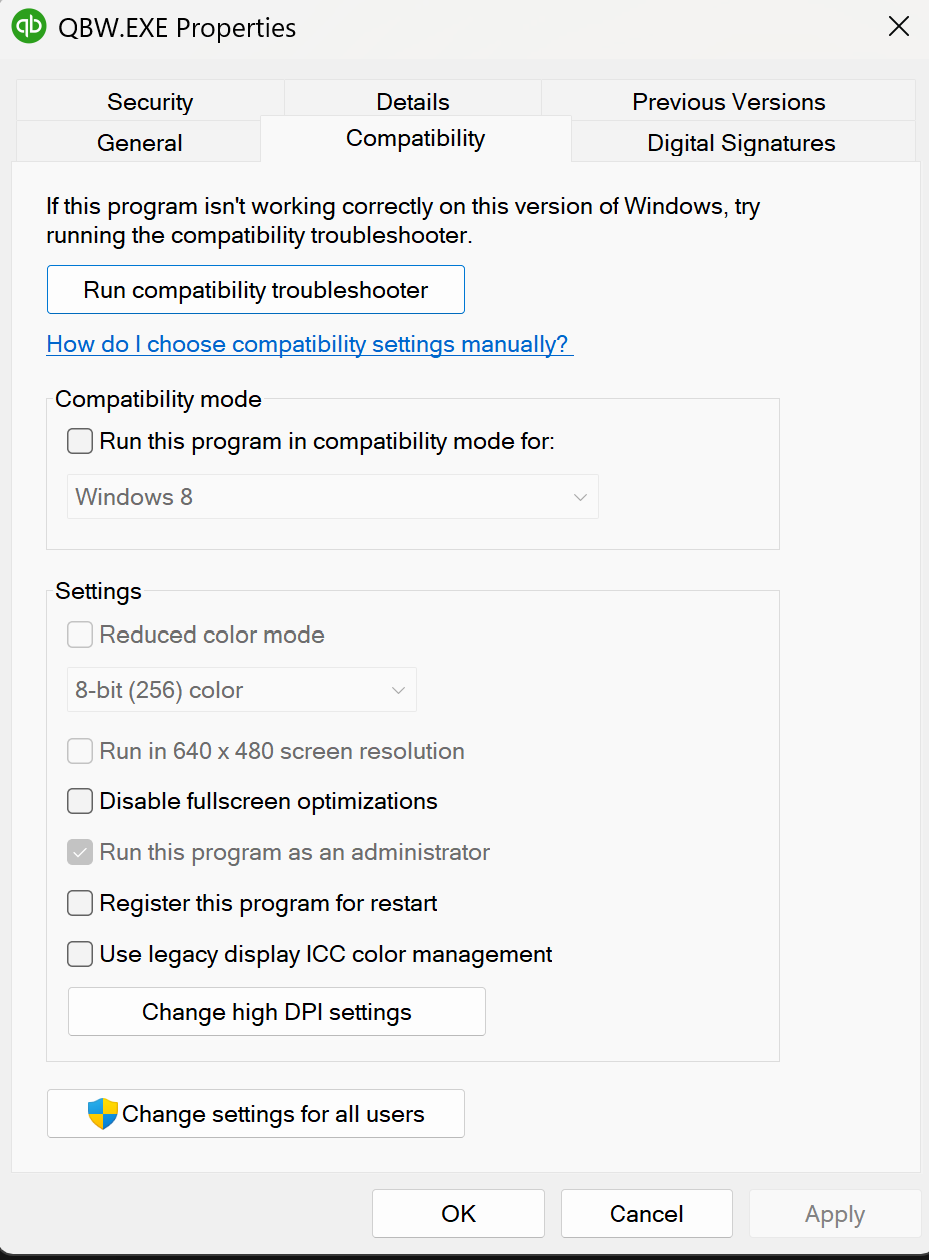
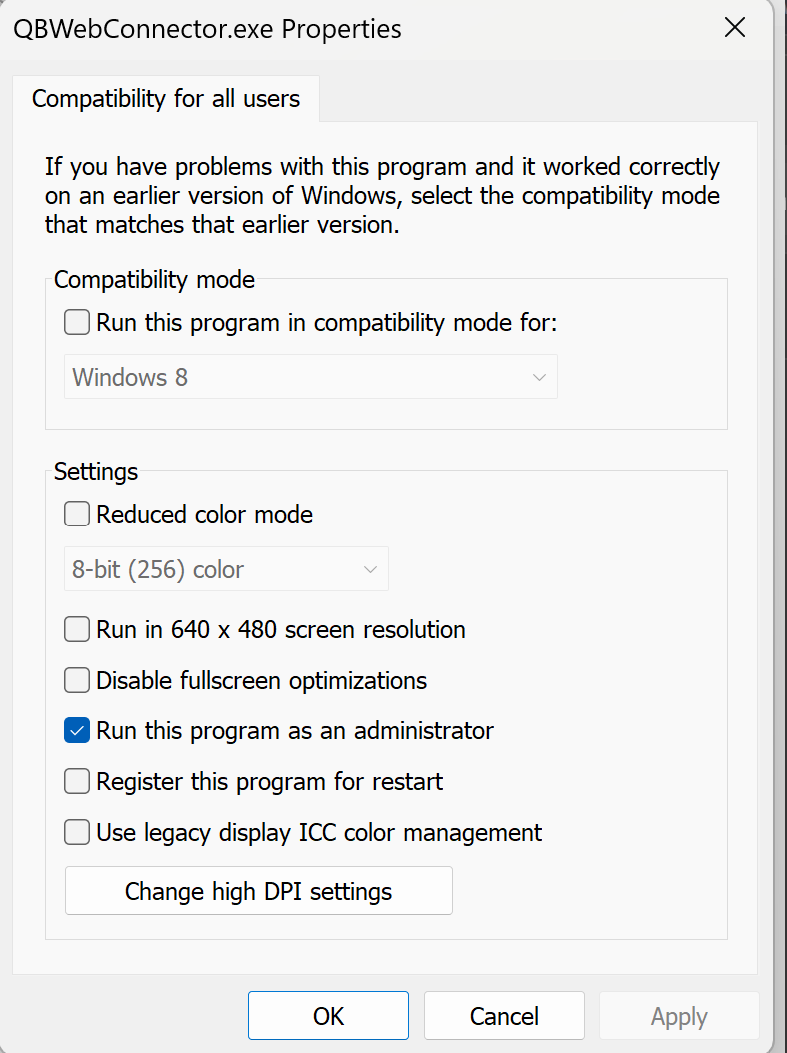
- If the checkbox is greyed out and you need to change it to match your desired setup, click the Change settings for all users button at the bottom.
- In the new window, adjust the “Run this program as an administrator” checkbox, click Apply, and then OK.
Step 2: Match QuickBooks Desktop (QBD) Permissions
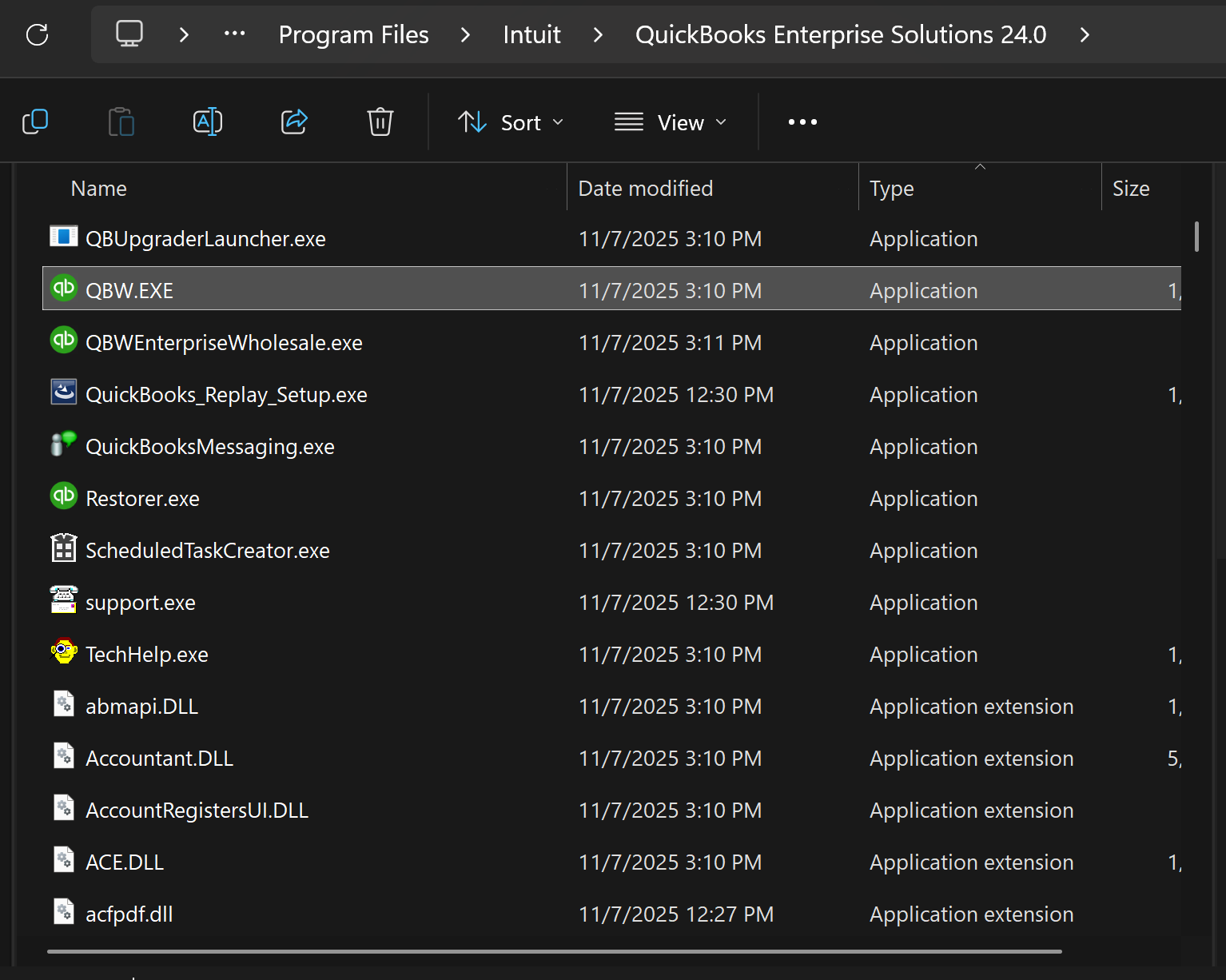
- Open File Explorer and navigate to your QuickBooks Desktop installation folder. The exact path will vary depending on your version (e.g.,
C:\Program Files\Intuit\QuickBooks Enterprise Solutions 24.0). - Locate the
QBW.EXEfile.
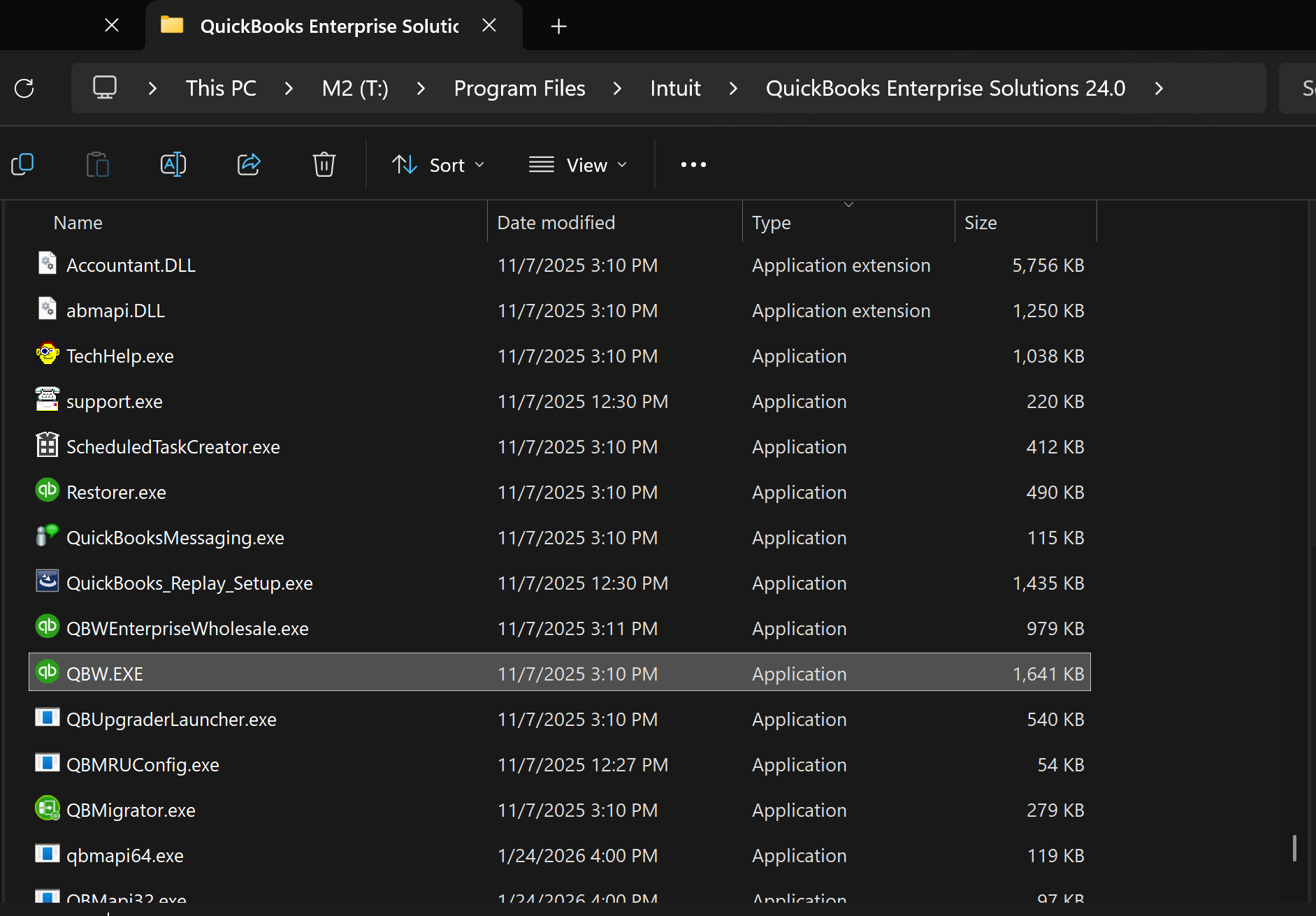 (Note: You may also see it displayed alongside other executables like QBUpgaderLauncher.exe as shown below)
- Right-click on
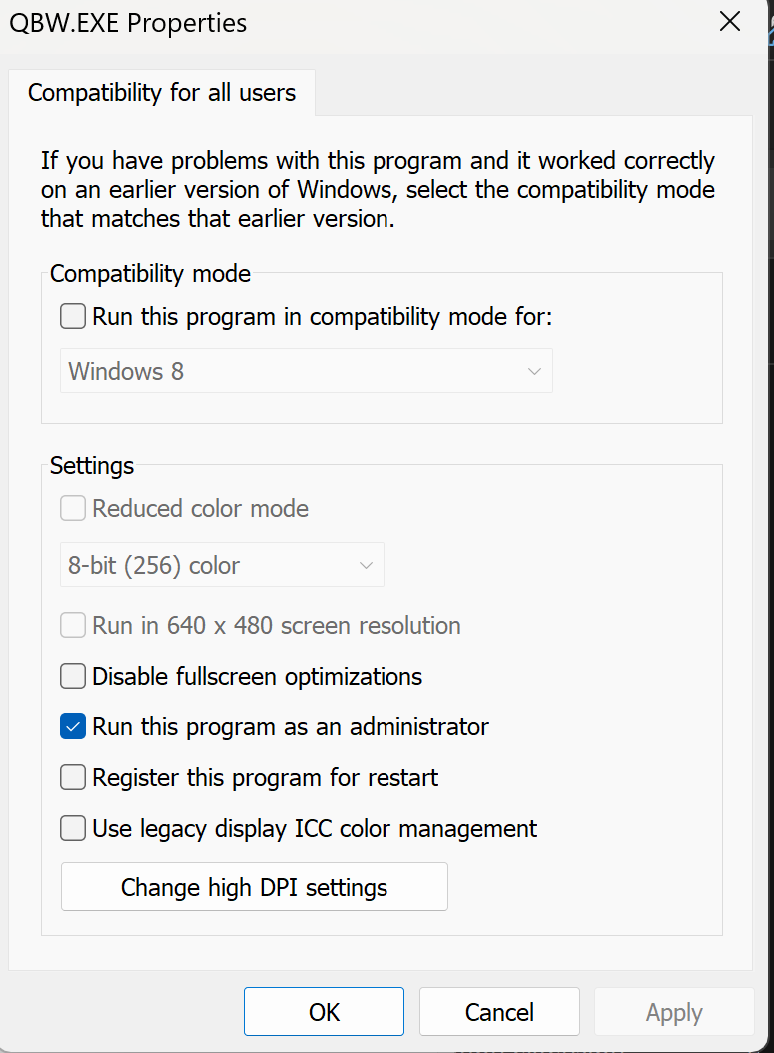
QBW.EXEand select Properties. - Navigate to the Compatibility tab.
- Ensure the “Run this program as an administrator” setting matches exactly what you set for the Web Connector in Step 1.
- If the setting is locked, click Change settings for all users.
- Check or uncheck the administrator box so it perfectly mirrors your QWC configuration. Click Apply, and then OK.
Once both applications are configured to run at the same permission level, close any open instances of QuickBooks Desktop and the Web Connector, then relaunch them to ensure they connect cleanly without spawning a secondary instance.