
Obtaining an NFR License
Request a free QuickBooks NFR License through Intuit Developer Support to run QuickBooks Desktop for development and testing of your nXus API integration.
Developers can obtain a free NFR (Not For Resale) copy of QuickBooks Desktop through the Intuit Developer program to test their integration without a paid license.
An NFR (Not For Resale) license lets you run a full copy of QuickBooks Desktop Enterprise locally — at no cost — specifically for building and testing integrations against the nXus API. This guide walks you through requesting a key from Intuit Developer Support and activating it in your installed trial.
What is an NFR License?
Building a QuickBooks integration shouldn’t require you to purchase a license. Intuit provides active developers with Not For Resale (NFR) licenses specifically for development, testing, and support. This allows you to run a full local instance of QuickBooks Desktop Enterprise strictly for non-production use.
Direct Action
Skip the navigation and go straight to the Intuit Developer Support Portal to start your request.
Critical Version Matching
Before you begin, verify the version of QuickBooks Desktop currently installed on your machine. Your NFR license request must match your installed version.
- If you have the v23 Trial installed, request a v23 NFR license.
- If you have the v24 Trial installed, request a v24 NFR license.
Requirements
-
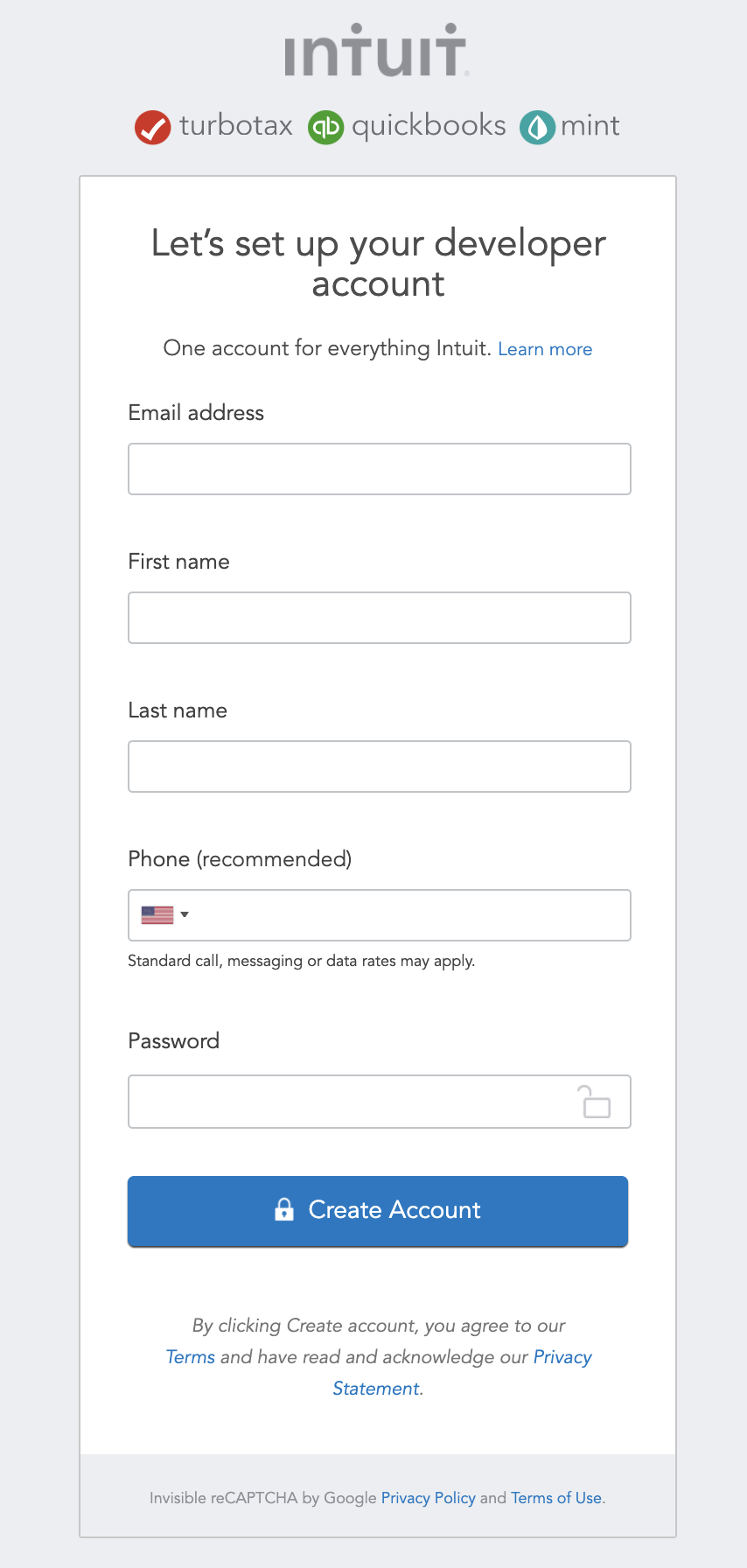
Create an Intuit Developer Account
If you haven’t already, sign up for a free account at the Intuit Developer portal. You will need this identity to manage your support tickets and API credentials.
Step-by-Step Instructions
-
Open a Support Ticket
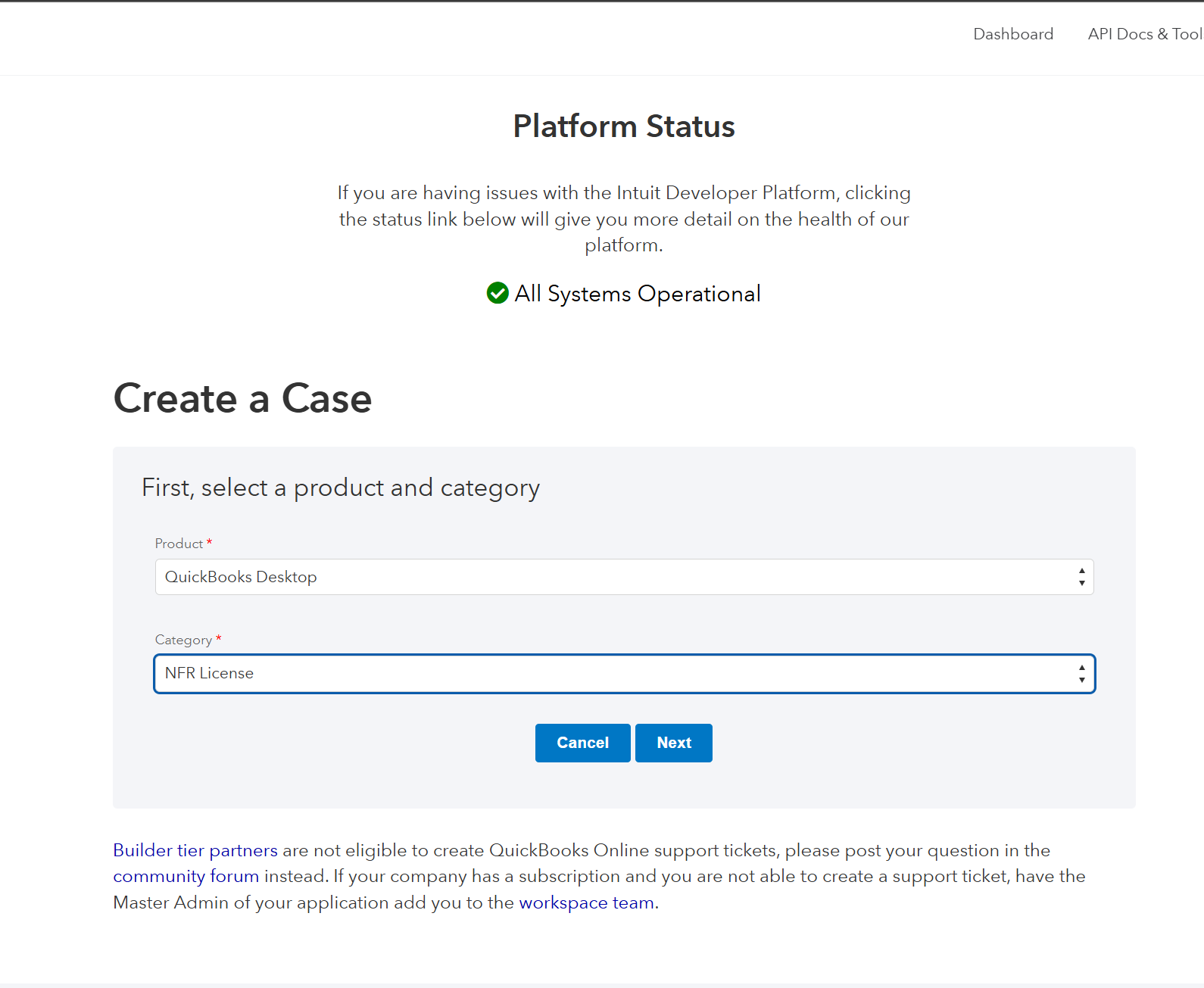
Navigate to the support section and create a new ticket. This is the official channel for NFR requests.
- Product: Select “QuickBooks Desktop”
- Category: Select “NFR License”
-
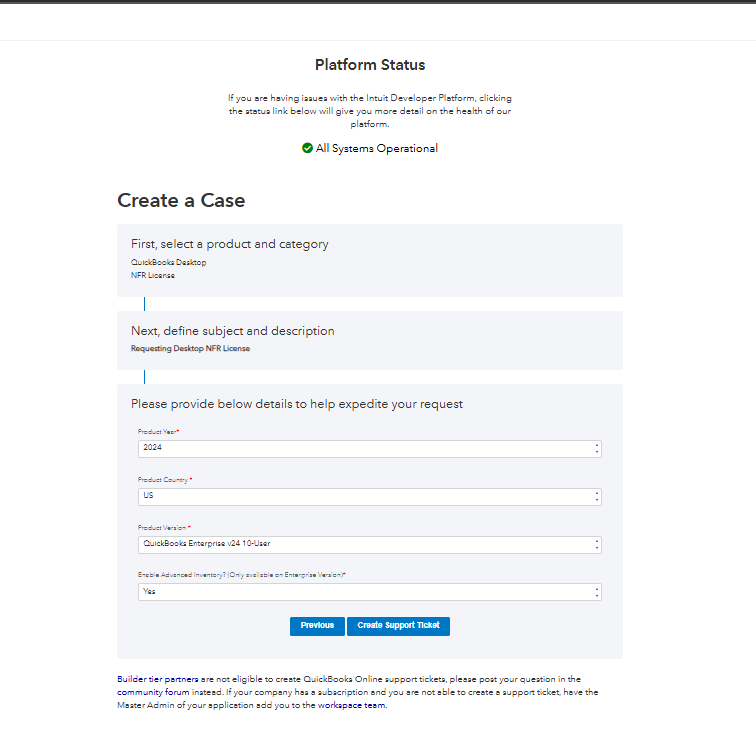
Specify Product Details
In the ticket description, be specific about the country and the features you need. To ensure full compatibility with the nXus API, we recommend requesting the Enterprise version with Advanced Inventory enabled.
-
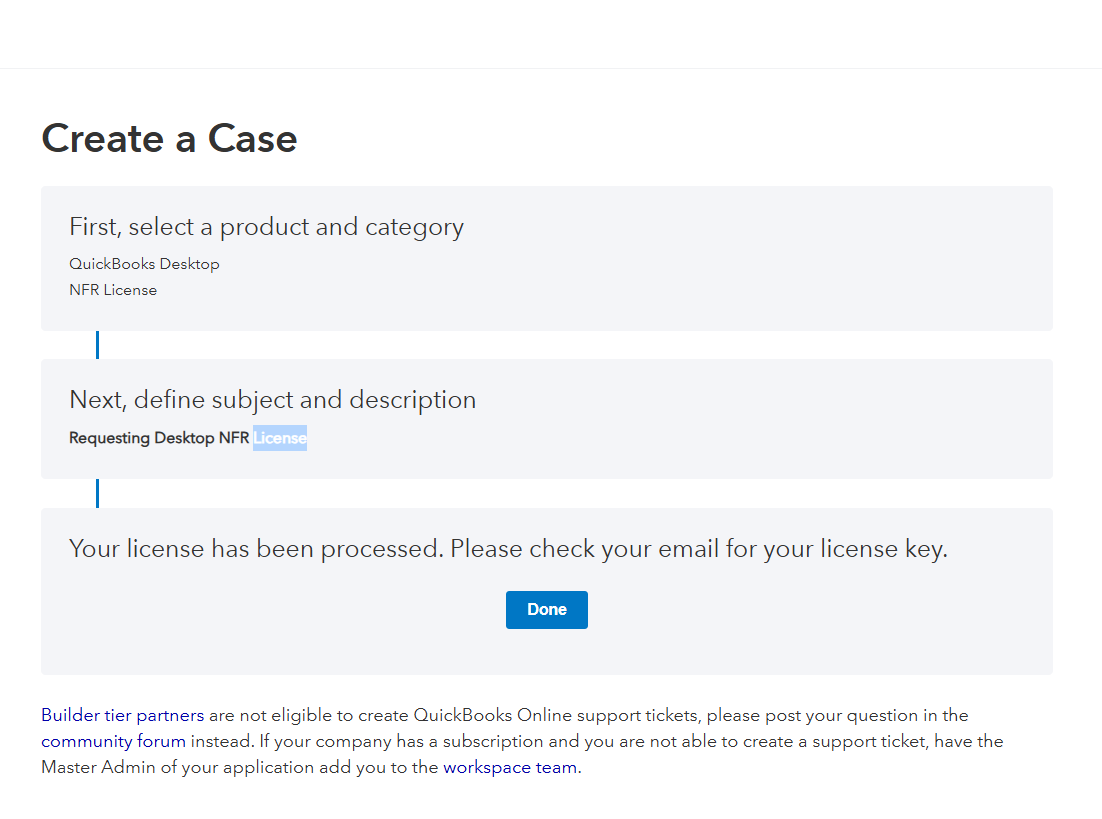
Submit the Case
Review your details and click Done to submit the request. You will receive a case number immediately.
-
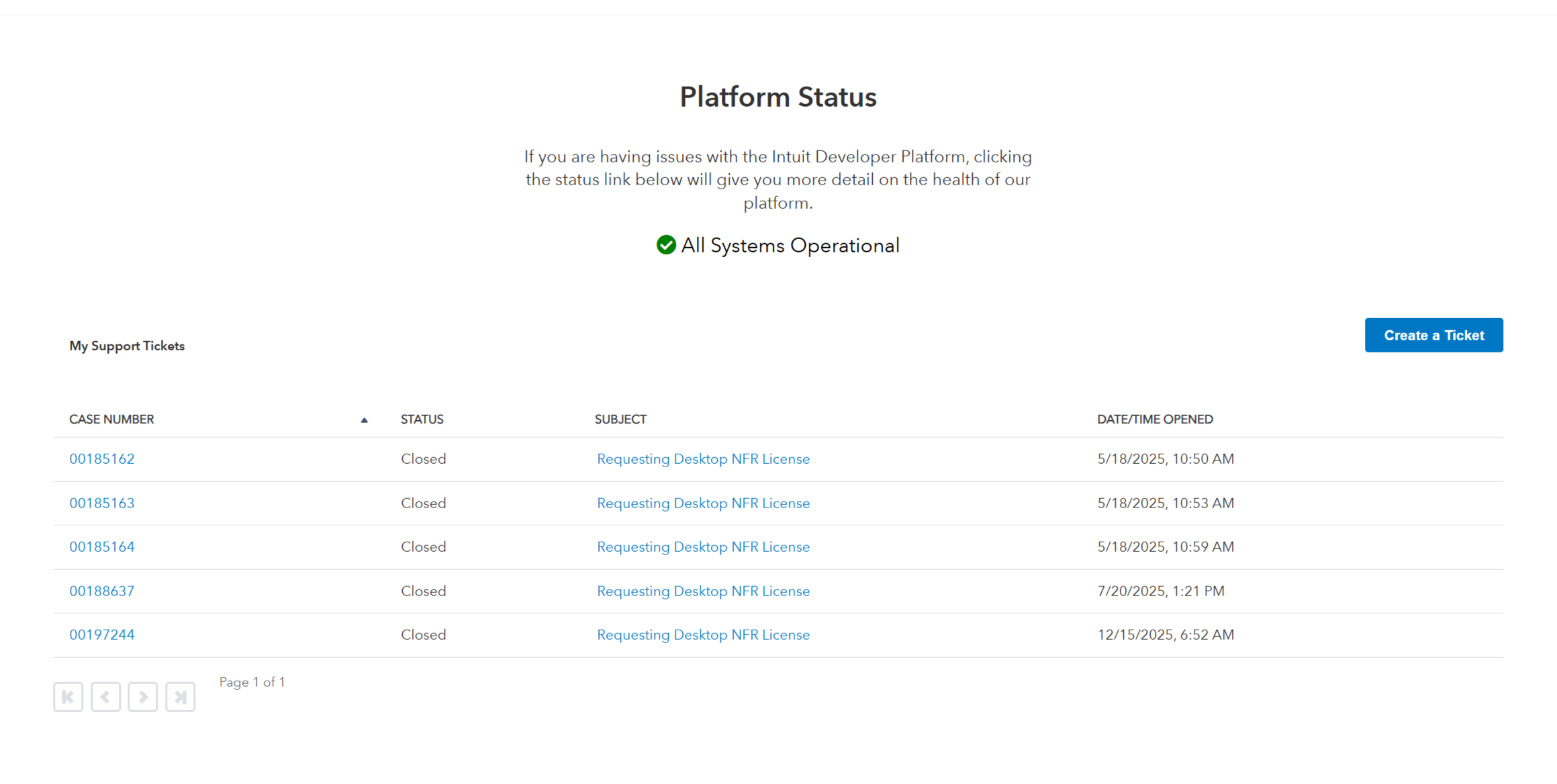
Monitor Your Dashboard
You can track the progress of your request through your Intuit Developer Dashboard under “My Support Tickets.”
Activating the License in QuickBooks Desktop
1. Wait for Confirmation
Intuit typically processes these requests within 24 to 48 hours. You will receive an email containing:
- Your License Number
- Your Product Number
- A link to download the installer (if needed)
2. Activate QuickBooks
Once you have the keys, open your trial version of QuickBooks Desktop. Navigate to Help > About QuickBooks > Register (or it may prompt you on startup) and enter your new NFR credentials to convert the trial into a permanent development instance.
3. Proceed to Setup
With your license active, you are ready to move on to setting up your test environment. From there, next, create a dedicated QWC user for the Web Connector, and verify permission compatibility before running your first sync.